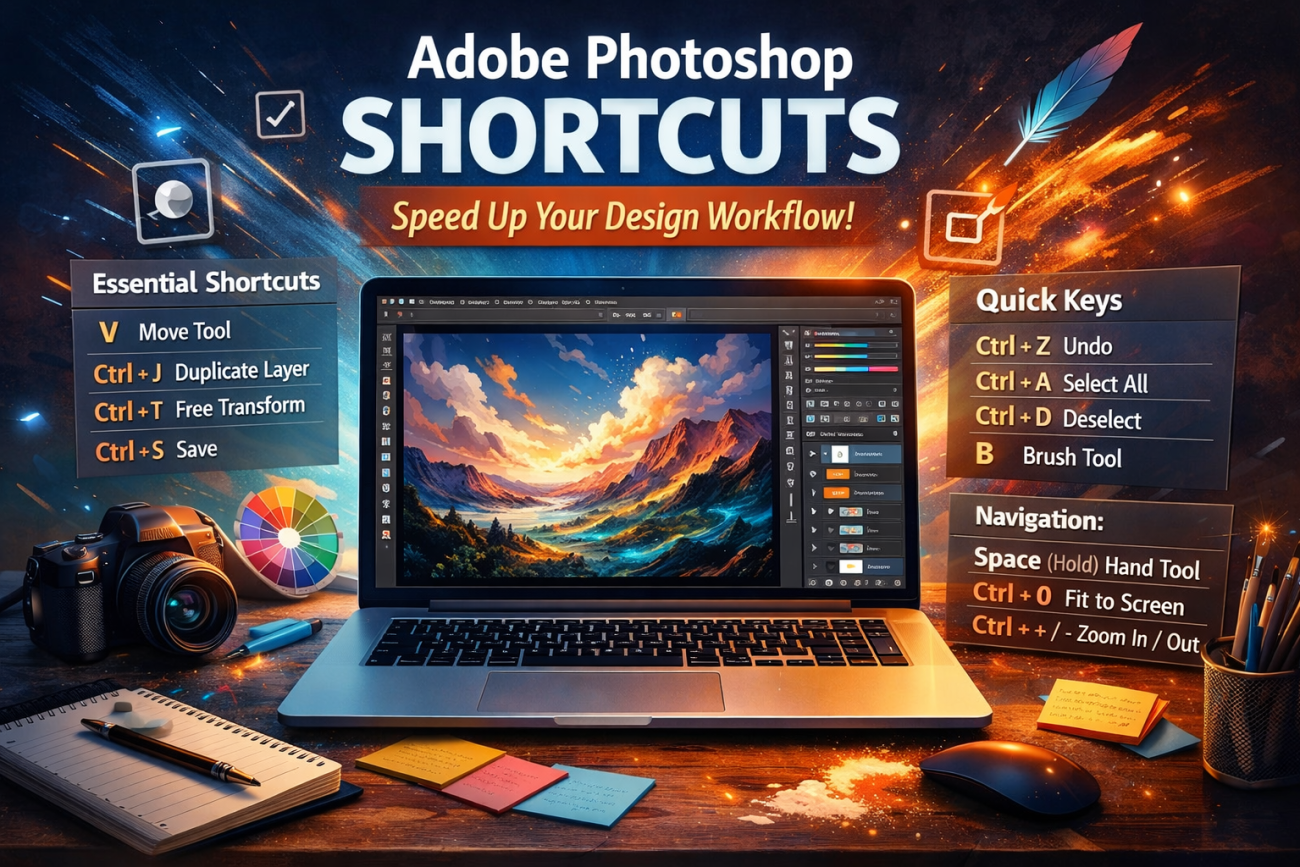
Adobe Photoshop is one of the most powerful design tools ever created—but power alone doesn’t make you efficient. Speed, precision, and flow come from how you use it. That’s why professional designers rely heavily on keyboard shortcuts.
If you find yourself constantly clicking through menus, switching tools with your mouse, or breaking concentration mid-design, this guide is for you. Below, you’ll find not only the most important Photoshop shortcuts, but also why they matter, when to use them, and how they improve real-world design workflows.
How Keyboard Shortcuts Transform Your Workflow
Keyboard shortcuts aren’t just “nice to know”—they are essential if you want to work like a professional.
Real Benefits of Using Shortcuts
- ⏱️ Save hours over time on repetitive actions
- 🎨 Maintain creative flow without interruptions
- 🧠 Reduce cognitive load by relying on muscle memory
- 🖱️ Less mouse movement, less fatigue
- 🚀 Faster project delivery, especially under deadlines
Over time, shortcuts turn Photoshop into a fast, responsive extension of your hands.
Essential Photoshop Tool Shortcuts (Foundation Level)
These are the tools you’ll reach for constantly. Memorizing these alone can cut your work time dramatically.
| Shortcut | Tool |
|---|---|
| V | Move Tool |
| M | Rectangular/Elliptical Marquee |
| L | Lasso Tool |
| W | Quick Selection / Magic Wand |
| C | Crop Tool |
| B | Brush Tool |
| E | Eraser Tool |
| T | Type Tool |
| I | Eyedropper Tool |
| Z | Zoom Tool |
💡 Pro Tip: Hold Shift + tool key to cycle through similar tools (for example, between different selection tools).
Canvas Navigation & View Control Shortcuts
Efficient designers move around the canvas effortlessly. These shortcuts help you zoom, pan, and focus without stopping.
- Ctrl + + / Ctrl + – – Zoom in / out
- Ctrl + 0 – Fit canvas to screen
- Ctrl + 1 – View at 100% zoom
- Spacebar (hold) – Temporary Hand Tool
- Tab – Hide/show all panels
- F – Cycle screen modes
📌 Why this matters: Faster navigation means less distraction and more attention on details.
Mastering Layers: The Heart of Photoshop
Layers are where most of your time will be spent. These shortcuts are absolutely essential.
Core Layer Shortcuts
- Ctrl + Shift + N – Create new layer
- Ctrl + J – Duplicate layer
- Ctrl + E – Merge selected layers
- Ctrl + Shift + E – Merge visible layers
- Ctrl + G – Group selected layers
- Ctrl + Alt + G – Create clipping mask
Advanced Layer Control
- Alt + Click eye icon – Solo a layer
- Ctrl + [ / ] – Move layer down/up
- Ctrl + Shift + [ / ] – Send to back / bring to front
💡 Pro workflow tip: Group layers logically (text, images, effects) to combine shortcuts with clean organization.
Selection Shortcuts for Precision Editing
Selections are critical for retouching, compositing, and UI design.
- Ctrl + A – Select all
- Ctrl + D – Deselect
- Ctrl + Shift + I – Invert selection
- Shift (hold) – Add to selection
- Alt (hold) – Subtract from selection
🎯 Why it’s important: Faster selection control means cleaner edits and fewer mistakes.
Transform & Editing Shortcuts
These shortcuts speed up resizing, rotating, and duplicating design elements.
- Ctrl + T – Free Transform
- Shift (while transforming) – Maintain proportions
- Alt (while transforming) – Transform from center
- Ctrl + Shift + Alt + T – Duplicate and repeat transform
- Ctrl + Z – Undo (new versions)
📌 Pro designers use this constantly for repeating patterns and layouts.
Brush, Color & Retouching Shortcuts
Perfect for digital painting, photo editing, and detailed retouch work.
- [ / ] – Decrease / increase brush size
- Shift + [ / ] – Change brush hardness
- X – Swap foreground/background colors
- D – Reset colors to black & white
- Alt (hold with Brush) – Temporary Eyedropper
🎨 This allows you to paint, sample, and adjust without ever touching the toolbar.
File Management & Workflow Shortcuts
Don’t waste time navigating menus when handling files.
- Ctrl + N – New document
- Ctrl + O – Open file
- Ctrl + S – Save
- Ctrl + Shift + S – Save As
- Ctrl + Alt + Shift + S – Save for Web (Legacy)
🚀 Fast saving is crucial when working with large files or client revisions.
Customizing Your Own Shortcuts
One of Photoshop’s most powerful (and overlooked) features is customization.
- Go to Edit → Keyboard Shortcuts
- Assign shortcuts to tools, menu items, or panels
- Optimize Photoshop for your personal workflow
💡 If you repeat the same action daily, it deserves a shortcut.
How to Learn Shortcuts Without Overwhelm
Trying to memorize everything at once doesn’t work. Instead:
- Start with 10–15 shortcuts you use daily
- Practice them consciously for a week
- Add new shortcuts gradually
- Avoid the mouse whenever possible
🧠 Muscle memory beats memorization every time.