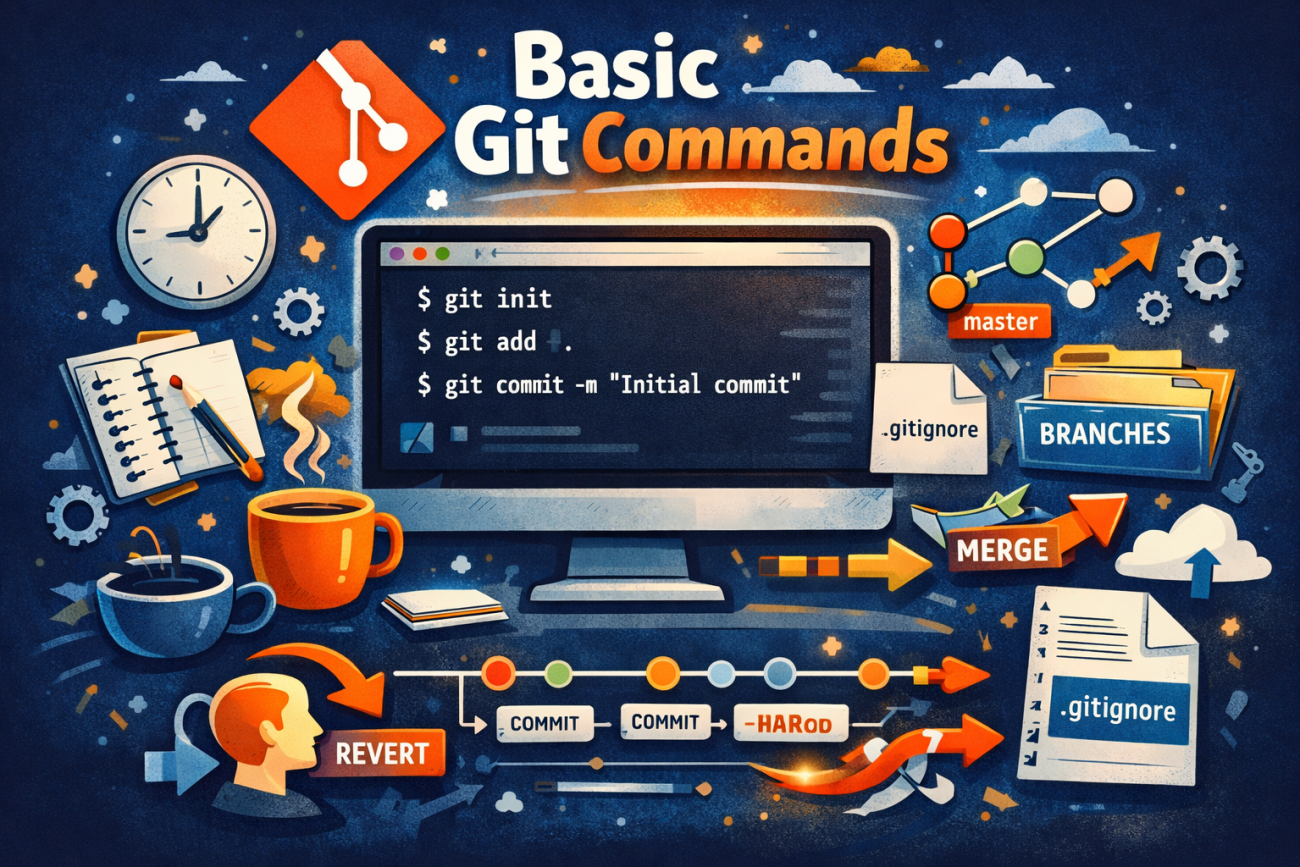
Git is one of the most widely used version control systems in modern software development. It allows developers to track changes, collaborate with teams, and manage project history efficiently. Whether you are a beginner or someone who wants to refresh their knowledge, understanding the basic Git commands is essential.
In this article, we will go through the most commonly used Git commands with clear explanations and examples.
1. Configuring Git User Information
Before making commits, Git needs to know who you are. This information will appear in your commit history.
git config --global user.name "Your Name"
git config --global user.email "[email protected]"
To check your current configuration:
git config --list
2. Navigating the Terminal
Although not Git-specific, these commands are commonly used while working with Git.
pwd
Displays the current directory.
ls # Displays the current directory
Lists files and folders in the current directory.
ls -a
Lists all files, including hidden ones such as .git.
3. Initializing a Git Repository
To start using Git in a project, navigate to your project folder and run:
git init
This command creates a hidden .git directory, which contains all the version control information for your project.
4. Checking Repository Status
To see the current state of your working directory:
git status
This command shows:
- Modified files
- Staged files
- Untracked files
It is one of the most frequently used Git commands.
5. Adding Files to the Staging Area
To add a specific file:
git add index.html
To add all files:
git add .
The staging area allows you to choose which changes will be included in the next commit.
6. Committing Changes
Once files are staged, you can save them to the repository with a commit:
git commit -m "Initial project setup"
A commit message should be short, clear, and descriptive.
7. Viewing Commit History
To see the list of commits:
git log
For a compact view:
git log --oneline
This helps you understand the project’s history and track changes over time.
8. Viewing File Differences
To see changes that are not staged yet:
git diff
To see changes that are staged:
git diff --staged
This command shows line-by-line differences between versions.
9. Working with Branches
Branches allow you to work on features independently without affecting the main codebase.
List branches:
git branch
Create a new branch:
git branch feature-login
Switch to a branch:
git switch feature-login
Or using the older command:
git checkout feature-login
10. Merging Branches
To merge a branch into the current branch:
git merge feature-login
This combines the changes from the selected branch into your active branch.
11. Undoing Changes
Restore a modified file:
git restore index.html
Remove a file from staging (but keep it locally):
git rm --cached index.html
12. Reverting a Commit
To safely undo a commit without rewriting history:
git revert <commit-hash>
This creates a new commit that reverses the changes.
13. Resetting Commits
Git reset allows you to undo commits in different ways:
git reset --soft HEAD~1
Keeps changes staged.
git reset --mixed HEAD~1
Keeps changes but unstages them.
git reset --hard HEAD~1
⚠️ Completely removes changes (use with caution).
14. Using .gitignore
To prevent certain files from being tracked:
touch .gitignore
Example .gitignore content:
node_modules/
.env
*.log
This is especially useful for ignoring sensitive files or dependencies.
15. Removing Git from a Project
To completely remove Git tracking:
rm -rf .git
This deletes all Git history from the project.
Conclusion
Git is an essential tool for every developer. By mastering these basic Git commands, you can manage your code efficiently, collaborate with others, and maintain a clean project history. As you grow more comfortable with Git, you can explore advanced features like rebasing, cherry-picking, and remote repositories.
Happy coding 🚀